📘 KS2 teacher guide: getting started, step by step
Everything a Year 5 or Year 6 teacher needs, from adding your class to seeing how pupils are doing. No computing knowledge needed. It takes about 10 minutes to set up.
- Sign in
- Add your class
- Get your pupils into the class
- Your Home page
- Play a game in class
- Set homework
- Set an assignment in class
- What your pupils see
- Let parents see how their child is doing (optional)
- See how they're doing
- Tips
1Sign in
You need your school's RADevo account first. If your school hasn't got one yet, ask us for a free trial.
- Go to radevo.co.uk and press Log in.
- Choose Sign in with Microsoft or Sign in with Google, and use your school account. There's no new password.
- The first time, you may need your school's IT team to approve RADevo once. Pupils then sign in the same way.
2Add your class
Your class gets every KS2 quiz, including new ones as we add them.
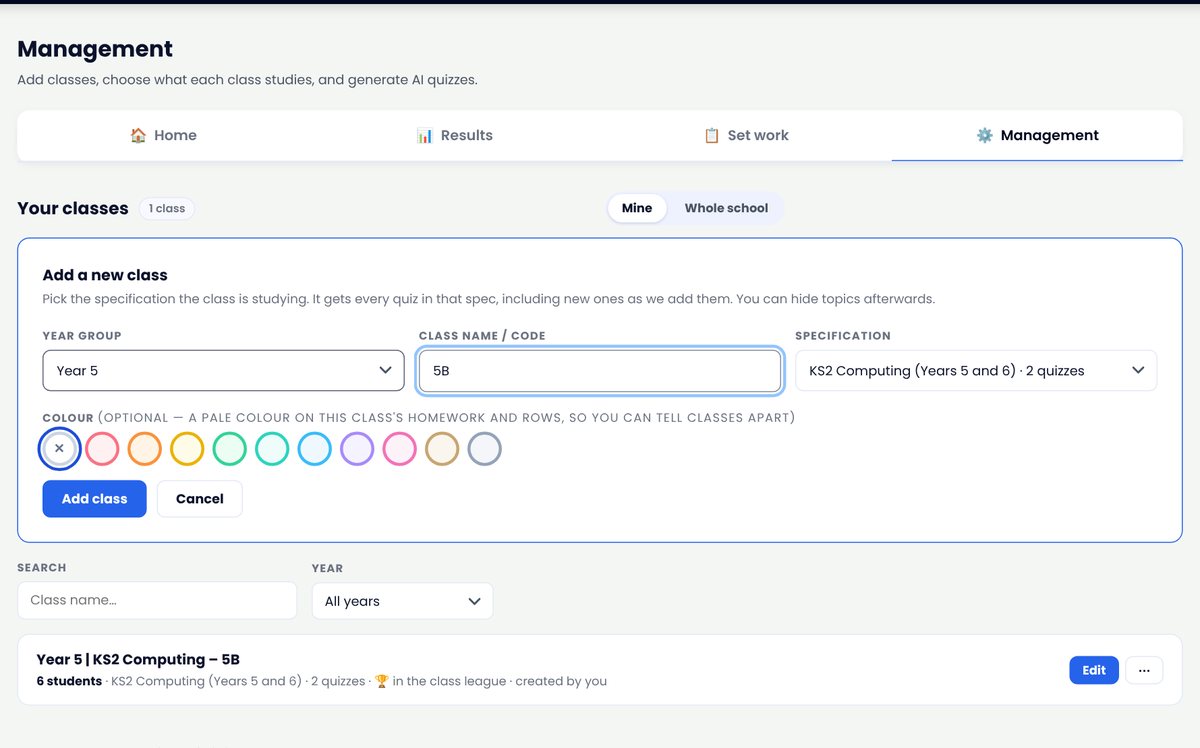
- Press Management in the menu, then + Add class.
- Choose the year group (Year 5 or Year 6), type the class name (for example 5B) and choose KS2 Computing (Years 5 and 6).
- Press Add class. You can hide topics you haven't taught yet with Edit.
3Get your pupils into the class
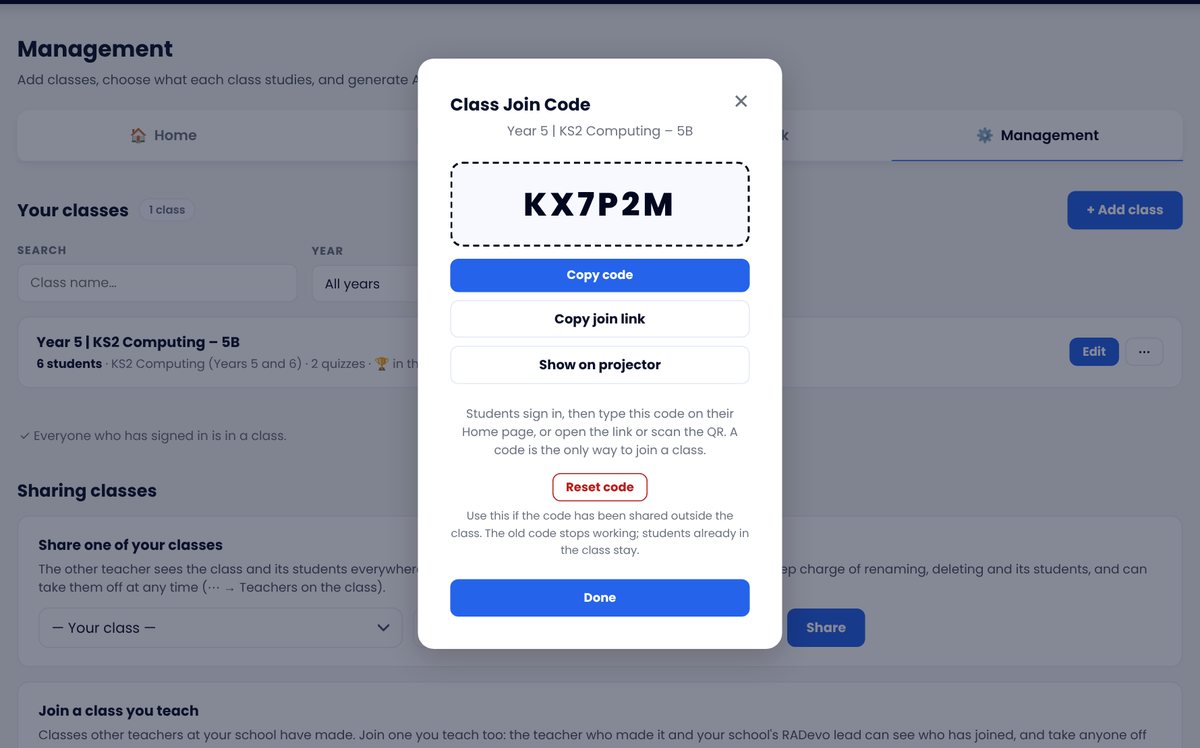
Each class has its own join code.
- In Management, press ⋯ next to your class, then 🔑 Class code and join link.
- Press Show on projector so the whole class can see the code.
- Pupils sign in, then type the code on their Home page (or scan the QR code). Check who has joined with ⋯ → 👥 Students.
4Your Home page
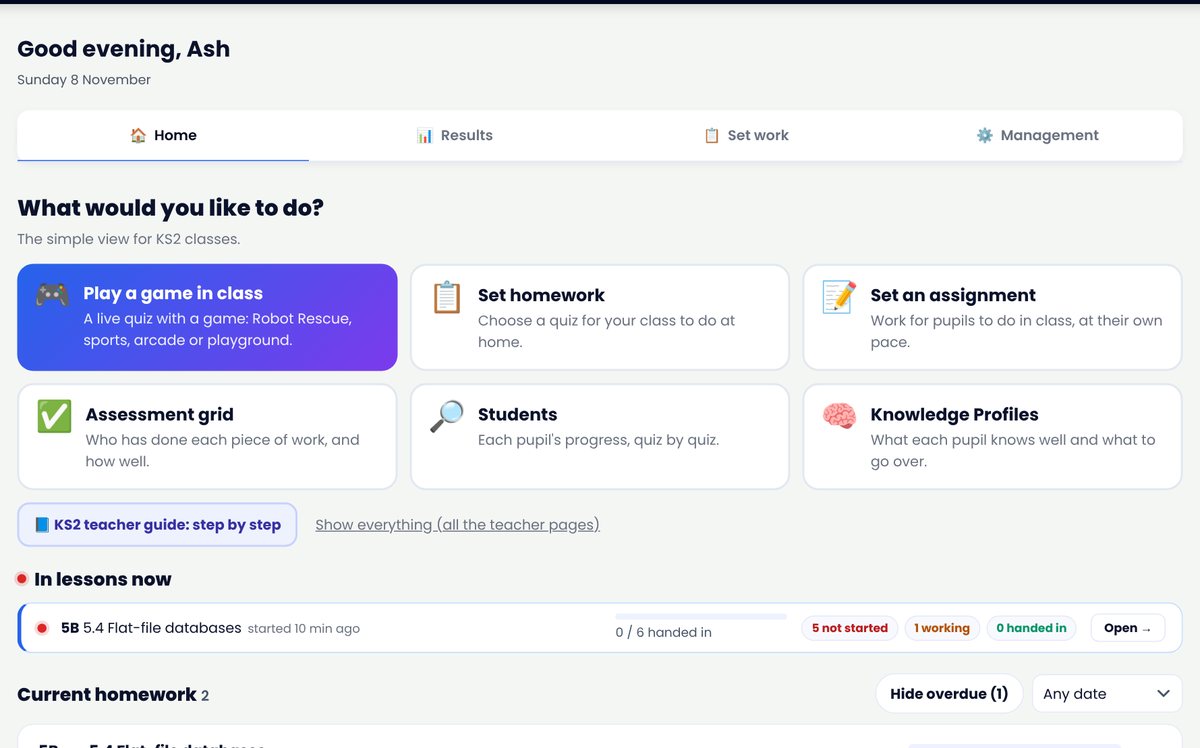
Teachers of KS2 classes get a simple Home with six big buttons. Below them you see what's happening in lessons now and the homework that's still live.
- 🎮 Play a game in class, 📋 Set homework and 📝 Set an assignment to give pupils work.
- ✅ Assessment grid, 🔎 Students and 🧠 Knowledge Profiles to see how they're doing.
- Want all the teacher pages? Press Show everything. You can come back to the simple view at any time.
5Play a game in class
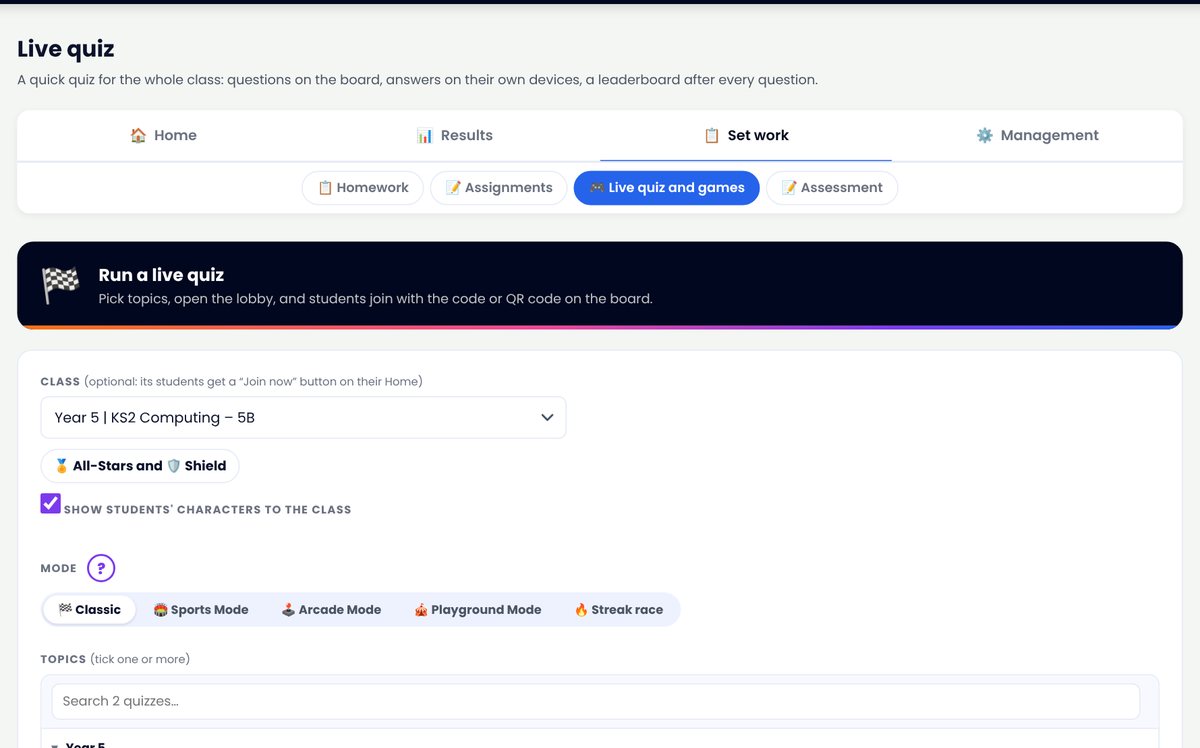
A live quiz: questions on the board, pupils answer on their own devices. Great for the end of a lesson.
- Press 🎮 Play a game in class, choose your class and tick a topic.
- Choose a mode: Classic, or a game from Sports, Arcade or Playground Mode. Then press 🏁 Open the lobby.
- Pupils join with the code or QR code on the board. Start when everyone is in.
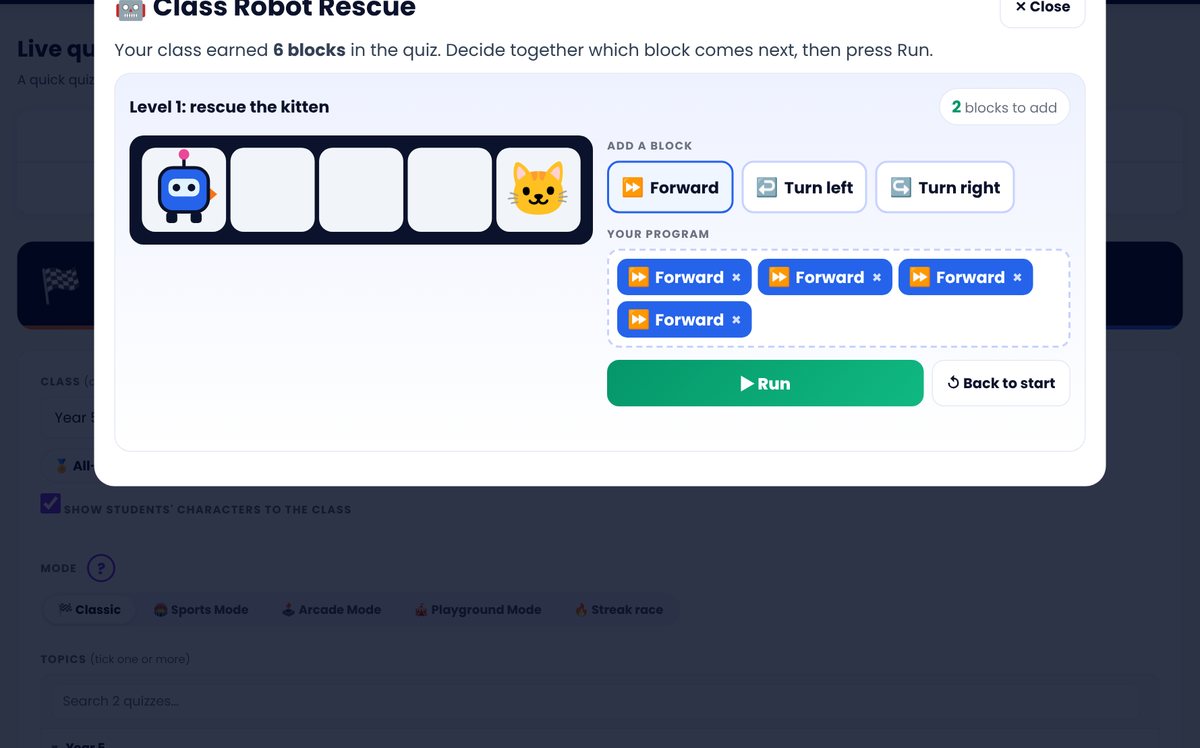
- At the end, press 🤖 Class Robot Rescue: the class spends the blocks it earned to program the robot together. Ask the class which block comes next!
6Set homework
Homework shows on each pupil's Home straight away. Primary pupils aren't emailed.
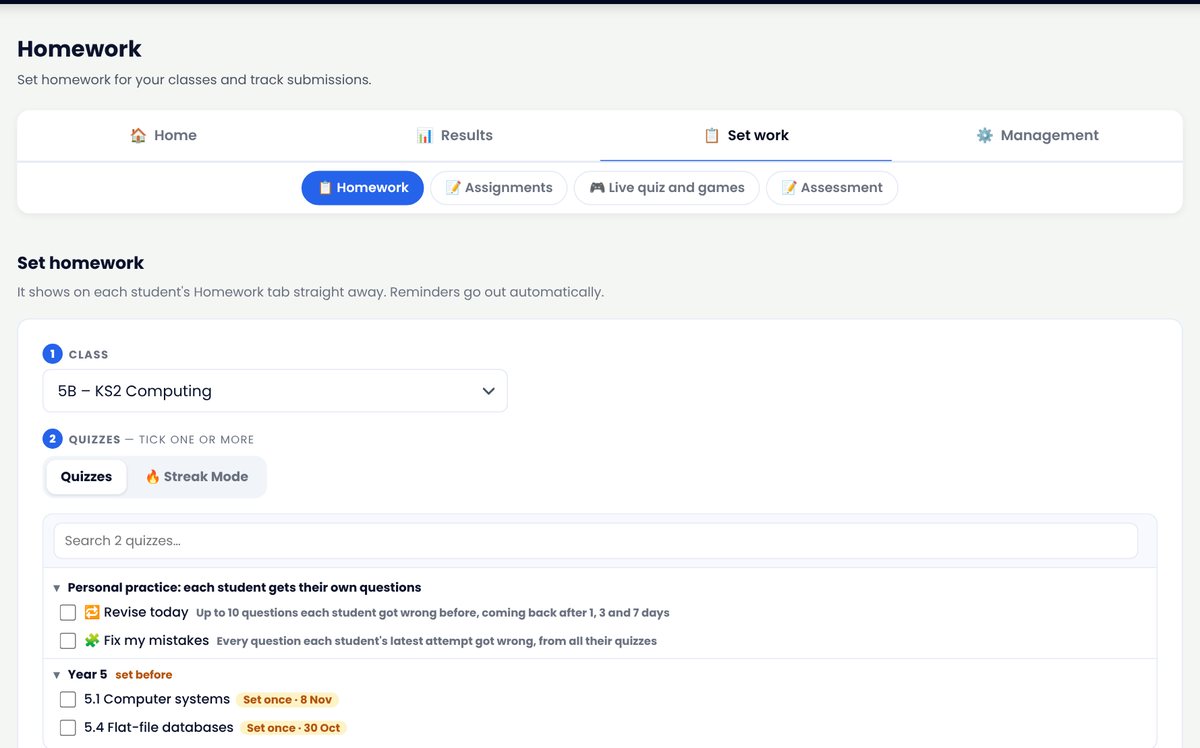
- Press 📋 Set homework and choose your class.
- Tick one or more quizzes, or choose 🔥 Streak Mode with a goal.
- Pick a due date (Tomorrow, Next Friday or In a week) and press Set Homework.
7Set an assignment in class
Work for pupils to do in the lesson, at their own pace.
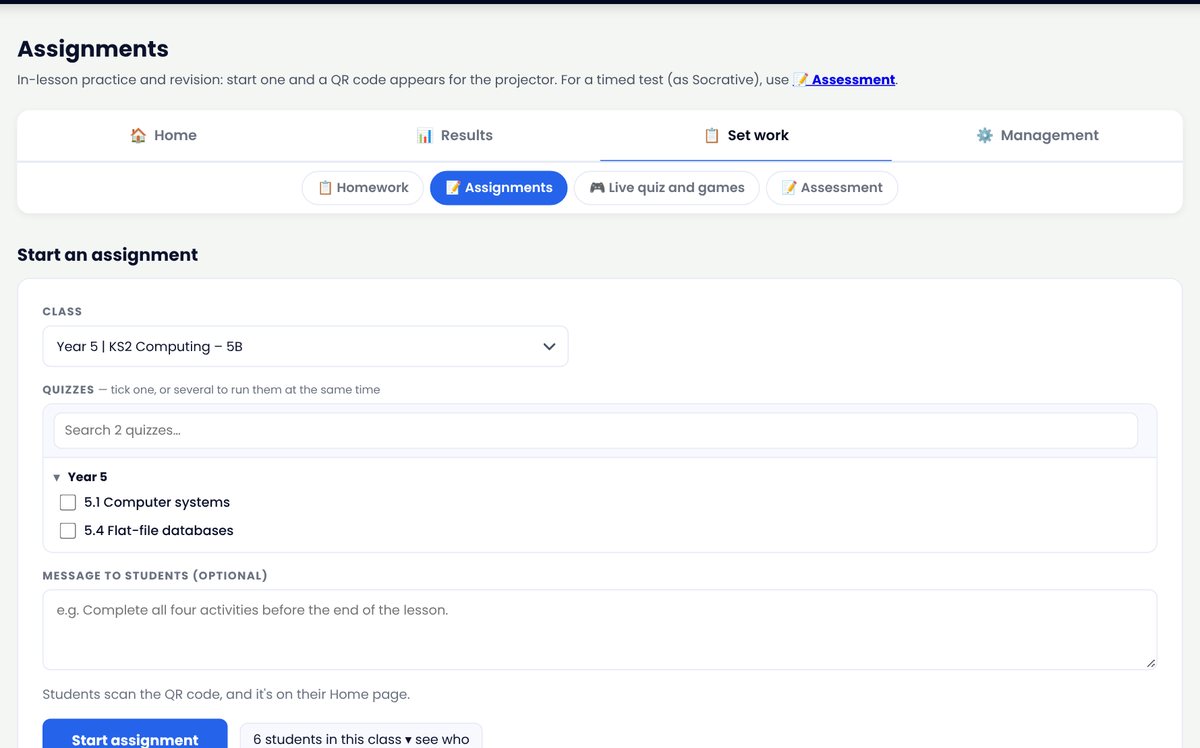
- Press 📝 Set an assignment and choose your class.
- Tick a quiz, add a message if you like, and press Start assignment.
- Pupils see Live now on their Home and press Start now. You can watch who has started and finished.
8What your pupils see
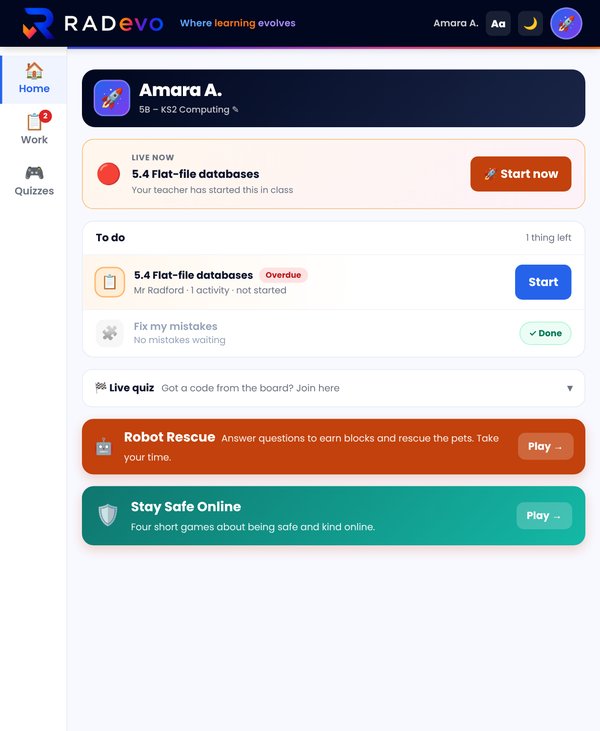
A simple Home with big buttons: their work, the live quiz, and games to play at their own pace.
- To do: their homework, Revise today and Fix my mistakes.
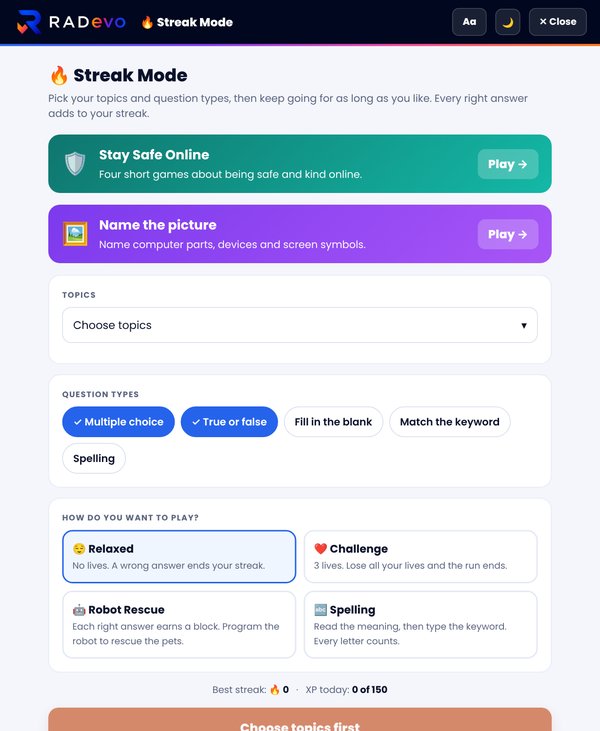
- 🤖 Robot Rescue: each right answer earns a block to program a robot through a maze. There are loops in the later levels.
- 🛡️ Stay Safe Online: four short games about being safe and kind online.
- 🖼️ Name the picture: devices, the parts inside a computer and screen symbols.
- 🔊 Read it to me reads the questions aloud. There are no timers.
- Press 👀 Student View at the top of any page to see it yourself.
9Let parents see how their child is doing (optional)
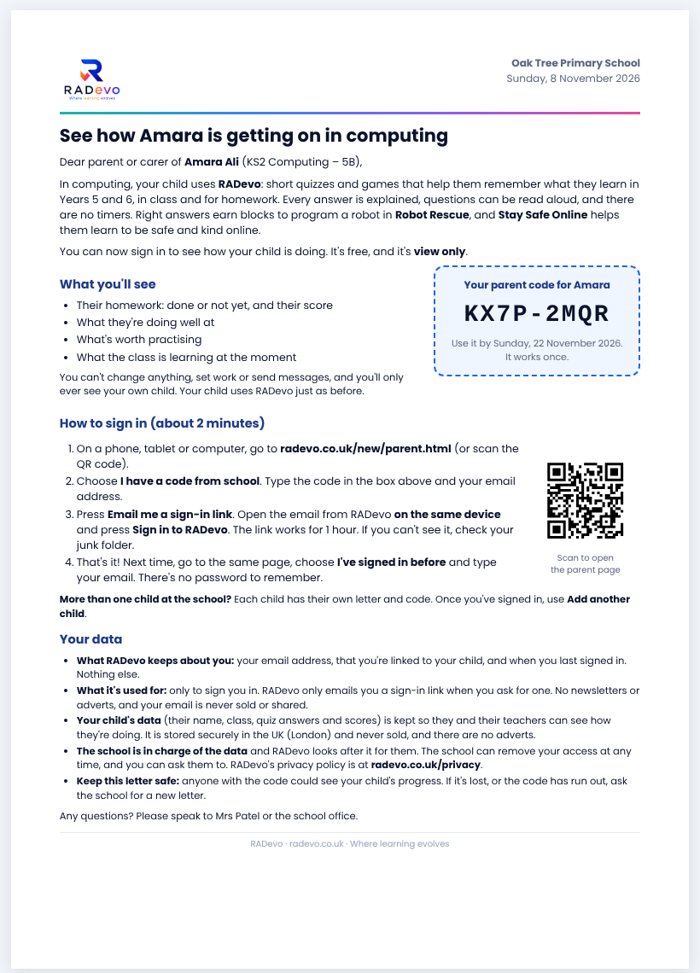
Parents can sign in to see their own child's homework, scores and topics. It's view only, and your school decides whether to use it.
- Your school's RADevo lead turns on 👪 Parent access in Management.
- Press ⋯ next to your class, then 👪 Parent letters, and print them. Each pupil gets their own letter and code (it lasts 14 days and works once), with full instructions and how their data is looked after.
- Parents type the code and their email on the parent page, and sign in with an emailed link. There's no password.
- See who is linked with ⋯ → 👪 Parents, and remove anyone if you need to.
10See how they're doing
Everything updates as soon as pupils finish.
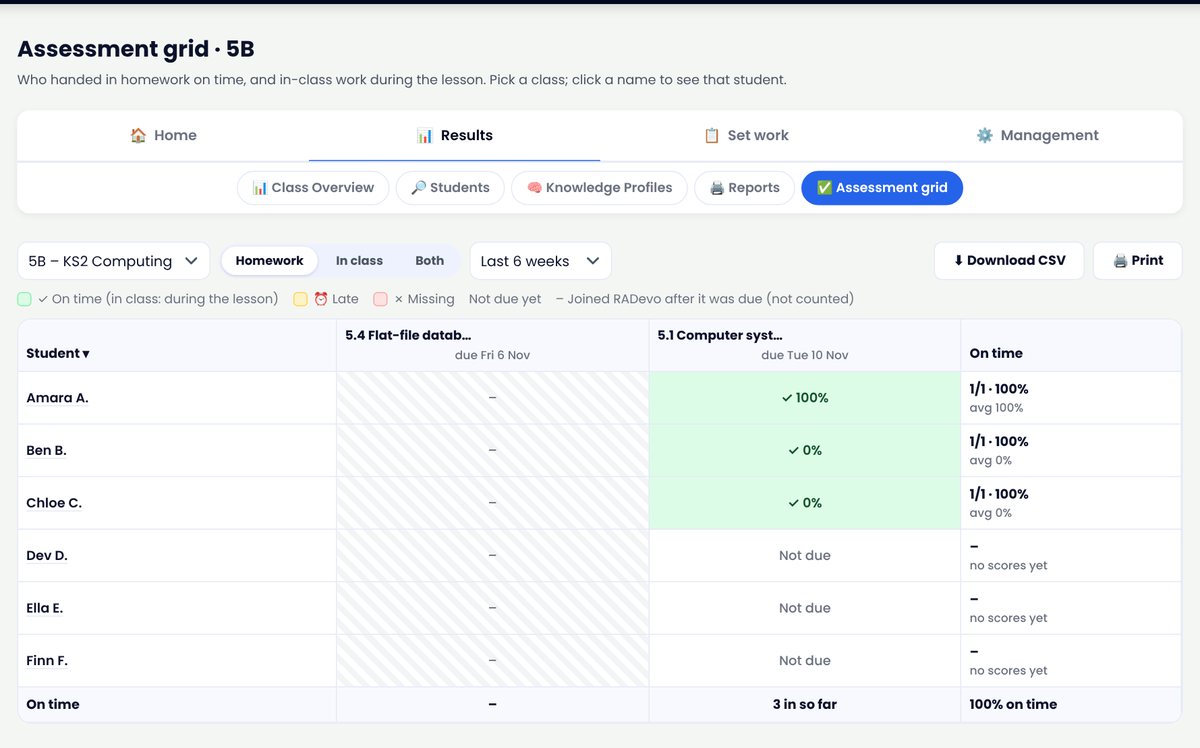
- ✅ Assessment grid: each pupil, each piece of work, and their score. Print it or download it.
- 🔎 Students: click a pupil for their scores, homework and what to work on.
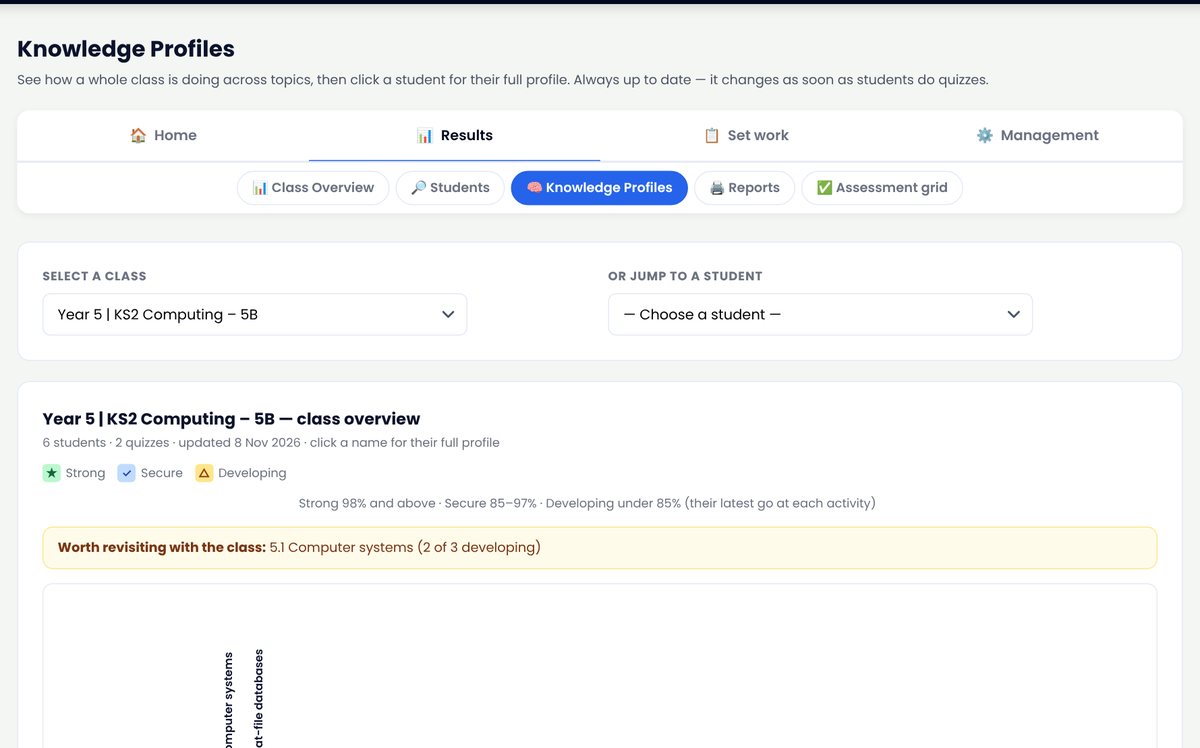
- 🧠 Knowledge Profiles: the class's strong and weak topics, and what's worth going over again.
✓Tips
- Not a computing specialist? Every question shows the right answer with a one-line reason, so you can go over it with the class.
- Shared iPads or Chromebooks? Ask pupils to sign out when they finish, so the next pupil can sign in with their own account.
- Little and often: a 10-minute game at the end of a lesson, and one homework a week, help pupils remember far more than one big test.
- Stuck? Press Help at the top of any page, or 👋 Take the tour. You can also message us from Help.